
OSC
Send and receive OSC to integrate A1R with other gear.
Pro+ A1R speaks OSC both ways:
- OSC out (the
+OSCtrack) — A1R fires timed OSC messages to other gear (lighting desks, video servers, consoles…) straight from your Arrangement. - OSC Remote (in) — control A1R from an external device or app using an industry-standard command set, with live status feedback.
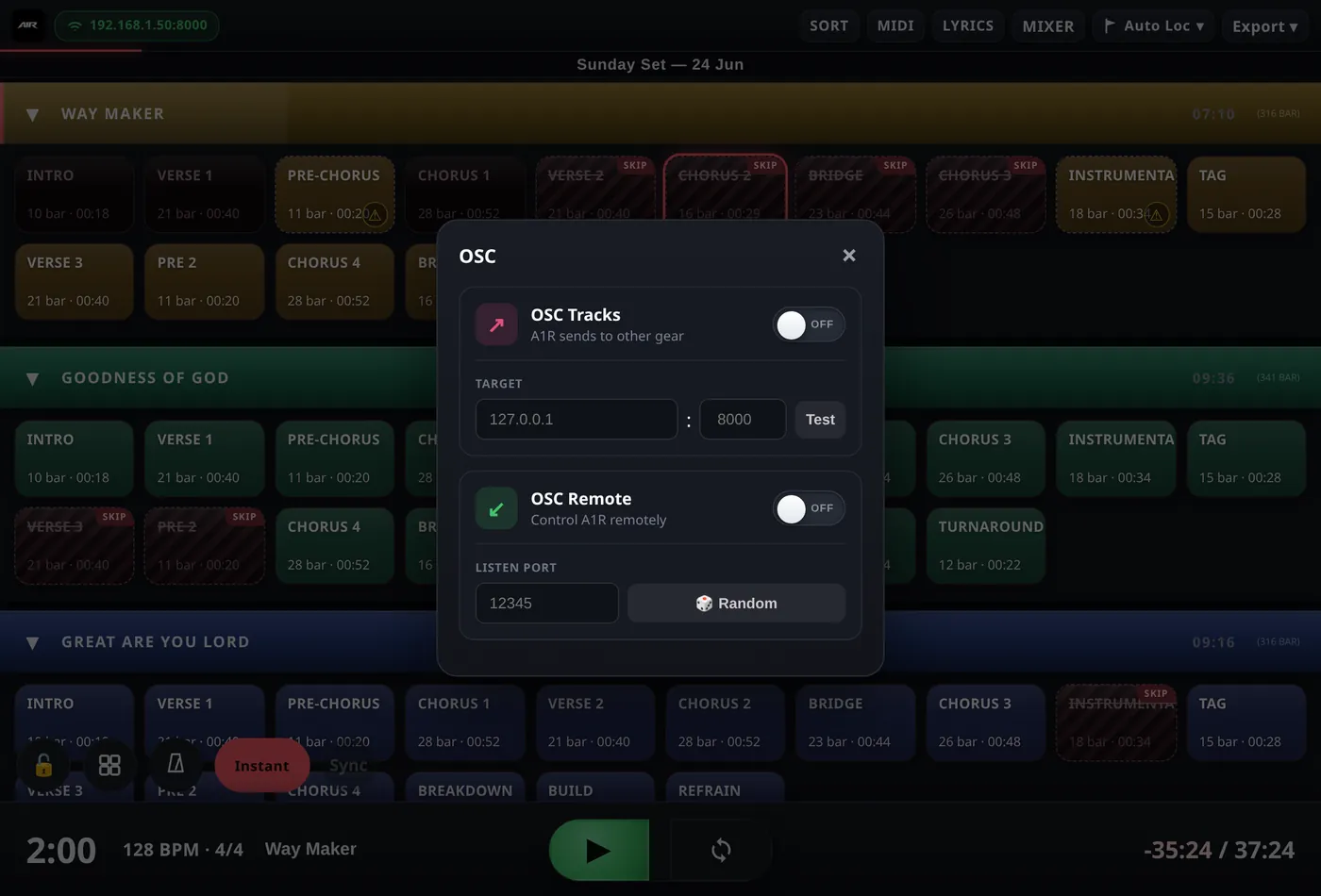
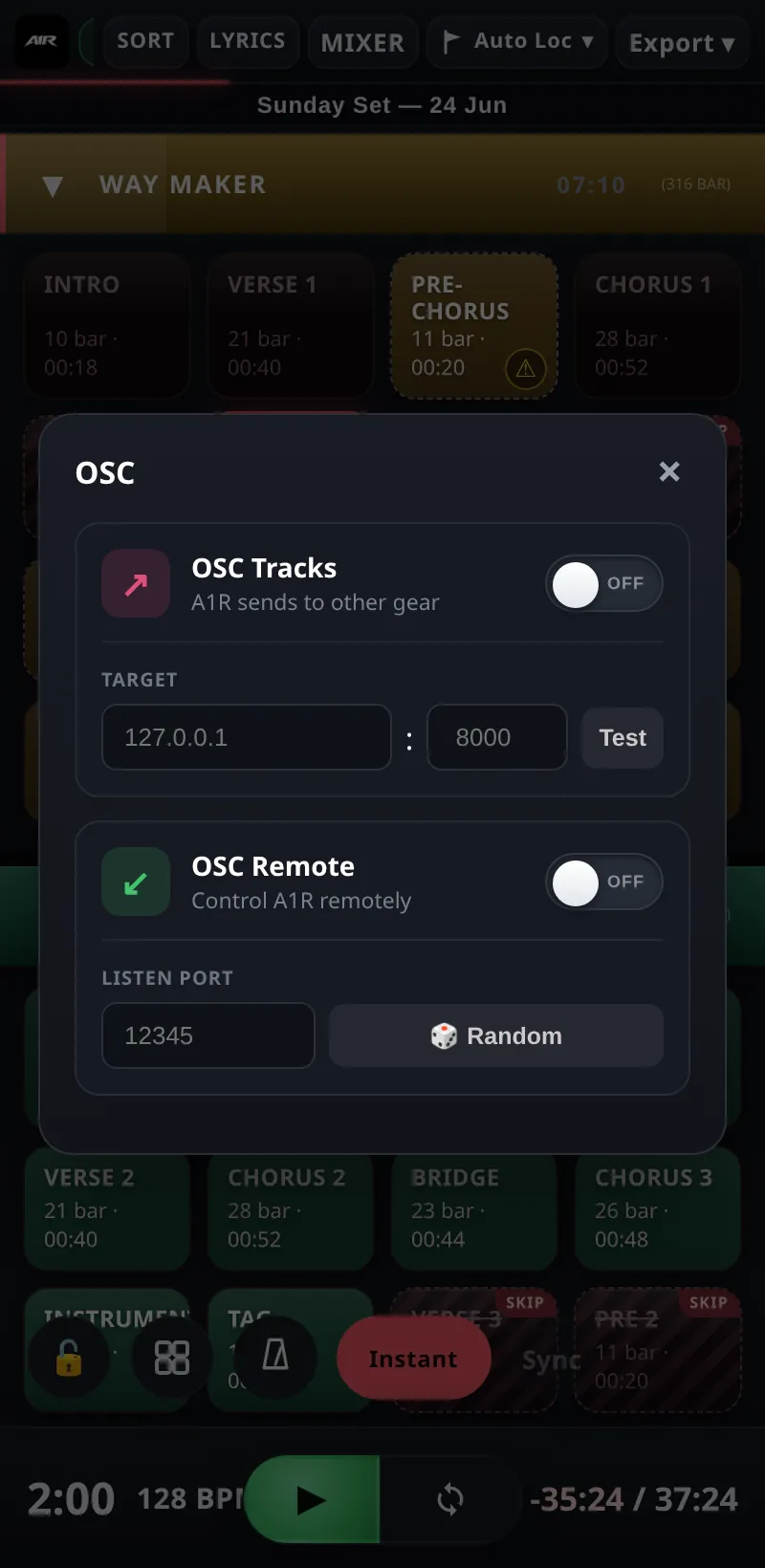
The OSC panel — send to gear (Tracks) and receive remote control.
Sending OSC: the +OSC track
- Add a track named +OSC to your Arrangement.
- Drop clips on it wherever you want a message fired. The clip name is the raw OSC message, address first, then arguments separated by spaces — e.g.
/light/scene 4or/video/play intro.mp4. - Set the target IP and port in the OSC settings, and switch OSC out on.
As the playhead crosses each clip during playback, its message is sent. Use the Test button in the settings to fire a test message and confirm the target device is receiving.
Receiving OSC: OSC Remote
In the OSC settings popup, turn on the OSC Remote toggle and choose a UDP listen port. The Random button picks a safe uncommon port for you (ports must be ≥1024). Any device on the network can then send the commands below to the A1R computer's IP on that port.
Command reference (input)
| Address | Arguments | What it does |
|---|---|---|
/global/play | — | Start playback (also accepts /global/startPlaying, /global/continuePlaying). |
/global/pause | — | Pause. |
/global/stop | — | Stop. |
/global/playPause | — | Toggle play / pause (also /global/playStop). |
/global/tempo | bpm | Set the tempo. |
/global/tempo/adjust | delta | Nudge the tempo by a relative amount (e.g. -2). |
/global/startRecording | — | Arm arrangement record and start playing. |
/global/stopRecording | — | Stop recording. |
/global/toggleRecording | — | Toggle recording. |
/global/quantization | value | Set launch quantization (e.g. none, 1, 2, 1/4). |
/setlist/jumpToSong | n | name | RANDOM | Jump to song number n (1-based) or by name. |
/setlist/jumpBySongs | ±n | Jump forward / back by n songs. |
/setlist/jumpToSection | n | name | Jump to section number n (1-based) or by name. |
/setlist/jumpBySections | ±n | Jump forward / back by n sections. |
/setlist/jumpToTime | beats | Seek to a beat position on the timeline. |
/setlist/setLocatorsFromClips | — | Run Auto Locator. |
/setlist/toggleStop | — | Toggle "Stop After Song" for the current song. |
/settings/jumpMode | manual | quantized | other | Set the jump mode. |
/settings/autoJumpToNextSong | 0/1 | Turn the Engine (auto-advance) on or off. |
/mixer/<slot>/volume | 0–1 | Set a mixer slot's fader (slot 0 = MAIN). |
/mixer/<slot>/mute | 0/1 | toggle | Mute / unmute a slot. |
/mixer/<slot>/solo | 0/1 | toggle | Solo / unsolo a slot. |
/mixer/<slot>/fadeTo | level [speed] | Fade a slot's volume to a level over time. |
/click/mute · /click/solo | 0/1 | toggle | Mute / solo the click track. |
/midi/send/noteOn|noteOff|cc|pc|raw | output, channel, num, value… | Send MIDI out through A1R (e.g. /midi/send/cc 1 1 20 127). |
Feedback: /subscribe
A1R pushes live status to any controller that subscribes. Send /subscribe <ip> <port> (or just /subscribe — the sender's address is used) and A1R starts sending updates whenever a value changes, plus a /heartbeat roughly every 2 seconds so your controller can detect a lost connection. Send /unsubscribe to stop.
| Feedback address | Value |
|---|---|
/global/isPlaying · /global/isPaused | 0/1 transport state. |
/global/tempo | Current BPM. |
/global/timeSignature | Numerator, denominator. |
/global/beatsPosition | Playhead position in beats. |
/global/humanPosition · /global/currentMeasure | Bar and beat-in-bar. |
/setlist/activeSongName · activeSongIndex · activeSongColor · activeSongDescription | Current song info. |
/setlist/activeSongDuration · activeSongProgress · remainingTimeInSong | Song timing (progress is 0–1). |
/setlist/activeSectionName · activeSectionProgress · nextSectionName | Current / next section. |
/setlist/songs · songCount · songColors · songDurations | The full setlist (in Sort order). |
/setlist/sections · sectionCount | Sections of the active song. |
/setlist/nextSongName · remainingTimeInSet | What's next, and time left in the whole set. |
/network/ip · /network/host | Sent once on subscribe — the A1R machine's IP and hostname. |
/mixer/<slot>/volume · muted · soloed | Live mixer state per slot. |
/heartbeat | Keep-alive ping (~every 2 s). |