
Mixer
Control your key tracks live, with dB metering.
Pro+ The Mixer gives you live volume, mute and solo on the Ableton tracks that matter — with dB metering — without leaving the setlist view. Open it with the MIXER button or Ctrl + M; press either again to close it.
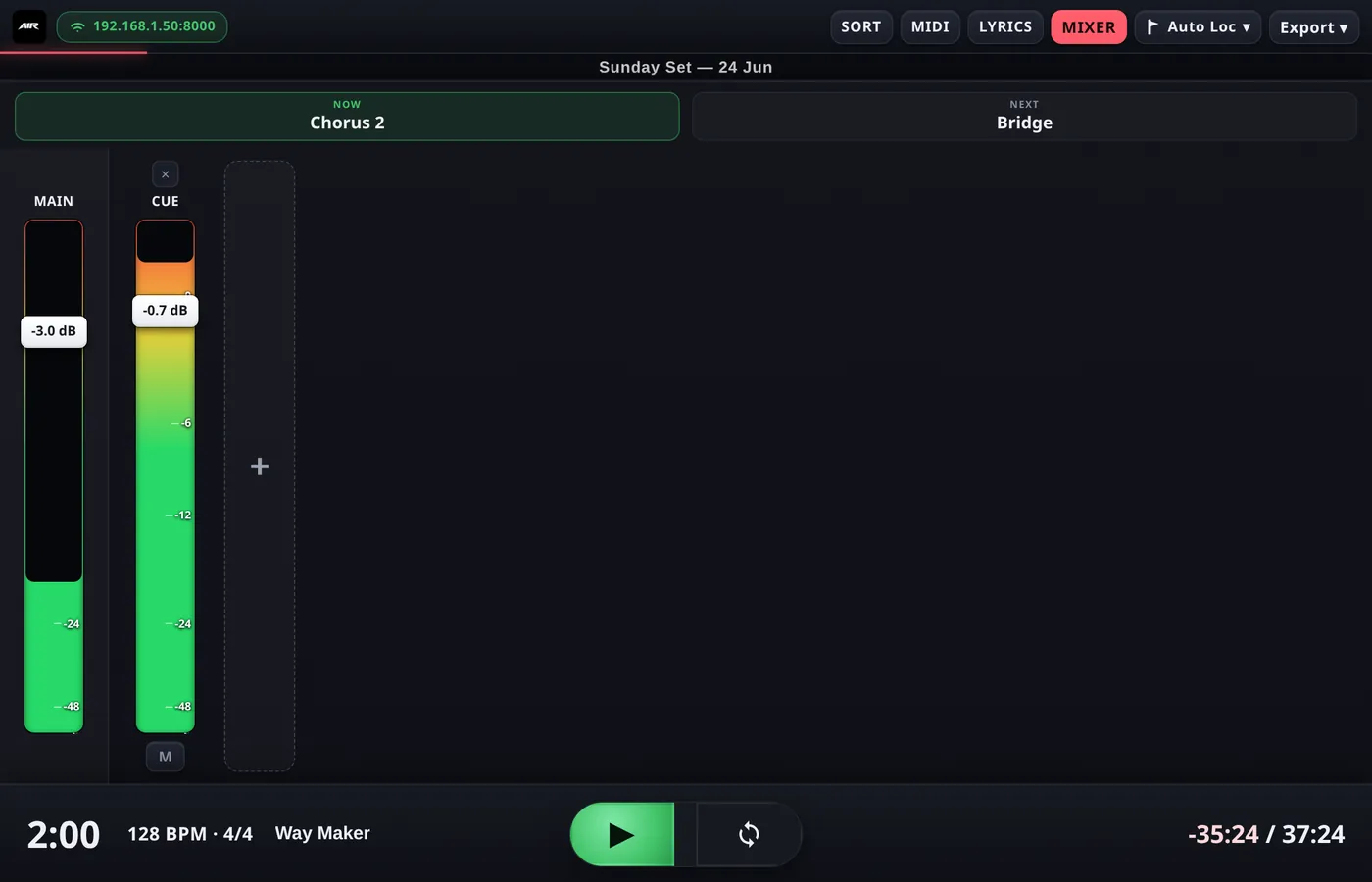
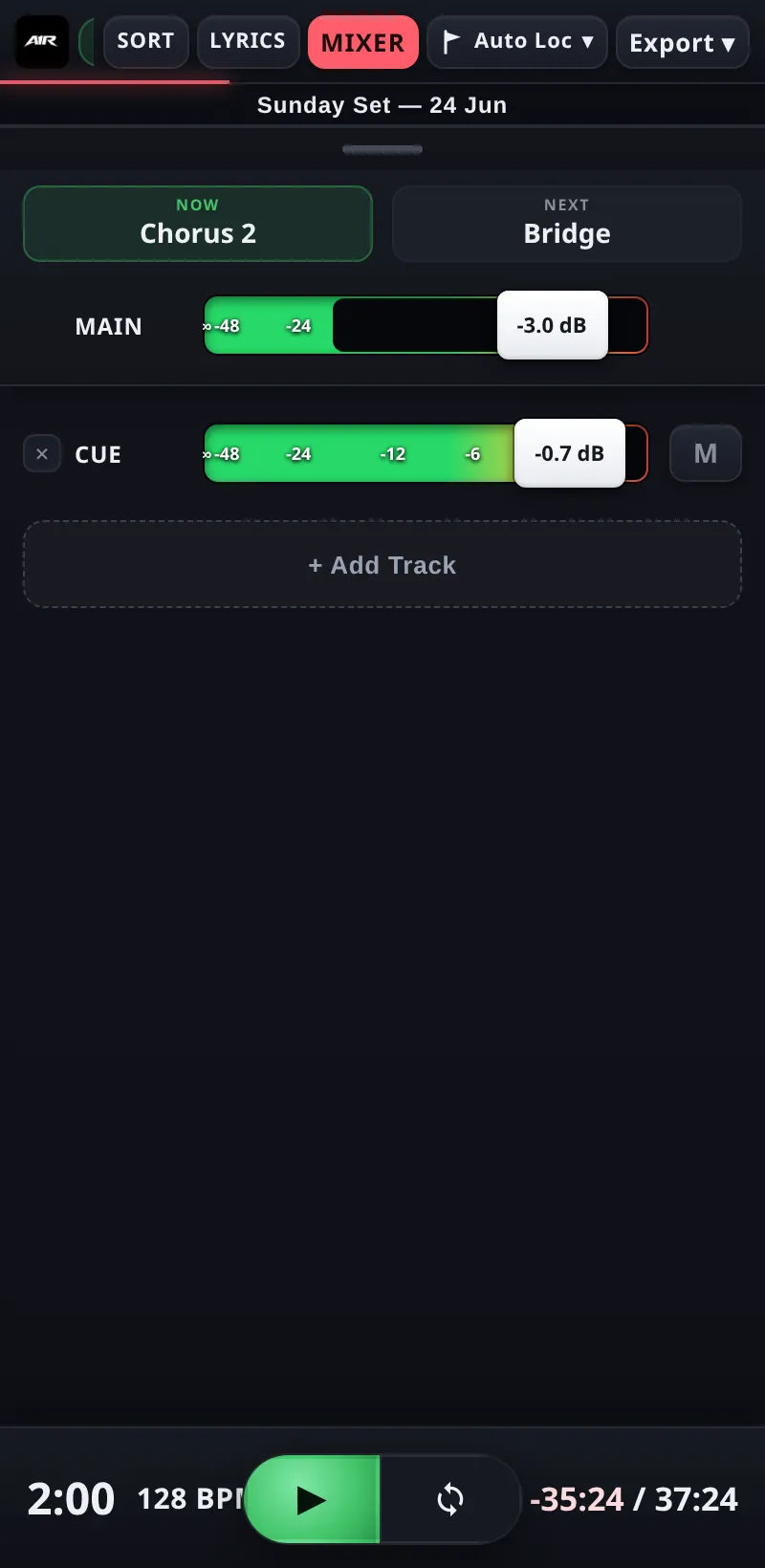
Faders, mute/solo and live dB metering.
Picking your tracks
The Mixer shows only the tracks you choose, in numbered slots:
- MAIN — Ableton's master output — is always pinned in the first slot. It can't be removed or replaced.
- Tap the + (empty slot) button to open the track picker and add any track from your Live Set.
- Tap an existing strip's name to replace it with a different track, or use its remove button to drop it from the Mixer. The track itself is untouched in Ableton.
- Add as many slots as you need — most bands keep it to the handful of faders they actually ride live (click, tracks, talkback…).
Faders & metering
- Each strip has a fader, a mute and a solo button, mirrored live with Ableton — move a fader in Live and the strip follows, and vice versa.
- The fader handle shows the current level in dB, and each strip has a VU meter behind it so you can see signal at a glance.
- In portrait (phone held upright) strips are shown as vertical faders side by side; in landscape (or on a wide desktop window) they become horizontal strips stacked top to bottom.
Staying oriented
The NOW → NEXT section header stays visible inside the Mixer, so you always know where you are in the song while you're riding faders. Jump buttons on the transport keep working too.
The Mixer can also be driven remotely over OSC —
/mixer/<slot>/volume, mute, solo and fadeTo. See OSC for the full command list.