
Sort
Reorder tonight's set without touching your Ableton arrangement.
Lite+ Tap the SORT button to enter sort mode, then drag songs into the order you want. Leaving sort mode saves the order instantly ("Order saved") — your Ableton arrangement stays exactly as it is.
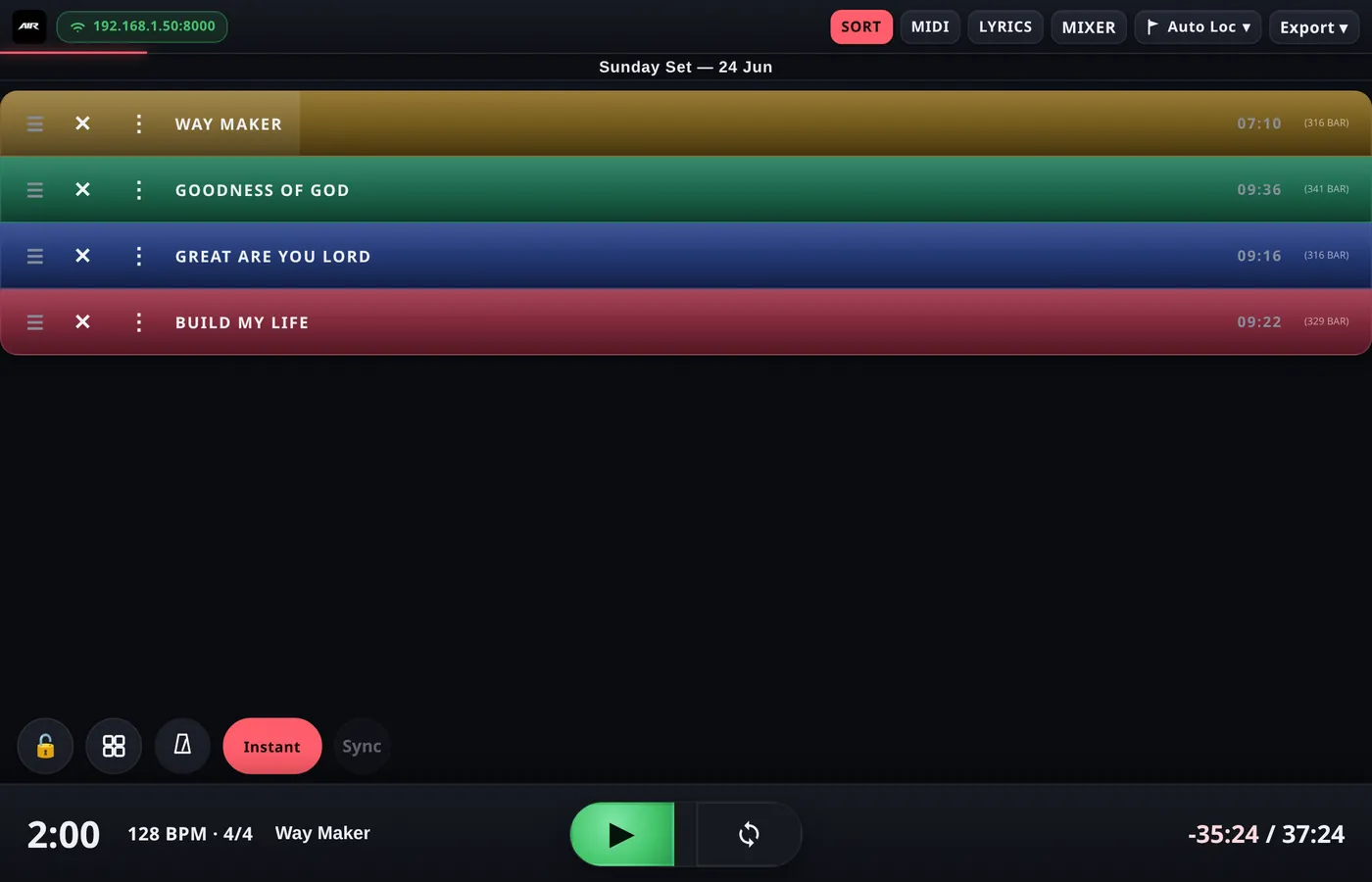
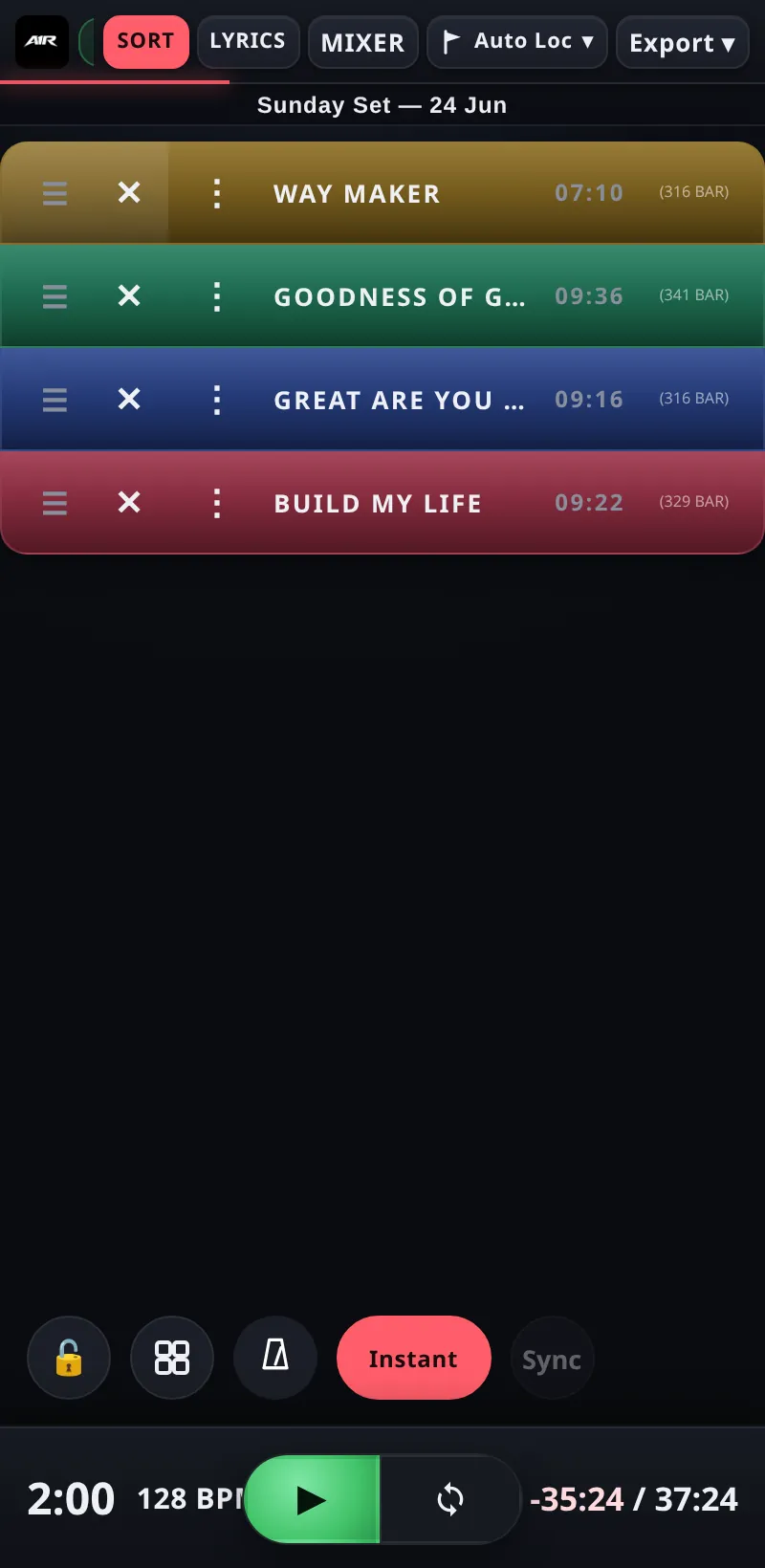
Drag to reorder, hide songs, or open the per-song menu.
Hiding songs
In sort mode each song row shows a ✕ hide button. Hidden songs are crossed out and dimmed while sorting, disappear from the setlist entirely in normal mode, and are excluded from Export and set totals — perfect for skipping a song "just tonight" without touching the project.
The per-song menu
Also in sort mode, each row has a menu button that opens the song's options:
| Option | What it does |
|---|---|
| Stop After Song | Transport stops when this song ends, instead of auto-advancing. |
| Delay After Song | Wait this many seconds of silence before the next song starts. |
| Description | A short note shown with the song (and printed on the exported setlist) — key, guest singer, "acoustic", etc. |
| Song Color | Toggle a colour for the song and pick it from the palette — an alternative to the [color] locator flag. |
Renaming the setlist
Tap the setlist title at the top of the screen to rename it. The name is saved with the project and used as the heading on exported PDF/PNG sheets.
Edit mode Ultra
Ultra adds full Edit: duplicate a song, and swap or duplicate sections virtually — A1R rearranges playback on the fly while Ableton's arrangement is never modified.
Edit mode Ultra
Ultra adds full Edit: duplicate a song, and swap or duplicate sections virtually — A1R rearranges playback on the fly while Ableton's arrangement is never modified.