Install & Setup
Get ULTRA running with Ableton Live in a few minutes.
ULTRA needs Ableton Live 11 or newer. The installer sets up two things: the A1R_ULTRA Control Surface inside Ableton (installed automatically) and the ULTRA server, which you control from any browser.
Windows
- Download and run the installer (
.exe). Your download link is in your license email, or on your account page. - Open Ableton Live → Preferences (
Ctrl + ,) → Link/Tempo/MIDI. - Under Control Surface, select A1R_ULTRA. Leave Input and Output = None.
- Launch A1R ULTRA from the Start menu or desktop shortcut. It lives in the system tray.
- Open http://localhost in your browser — ULTRA serves on the default web port (80), so no port number is needed. You can also use http://a1r-ultra.local from any device on the network.
macOS (Apple Silicon)
- Download the
.dmgand drag A1R ULTRA to Applications. - Set the A1R_ULTRA Control Surface in Ableton the same way (
Cmd + ,→ Link/Tempo/MIDI). - On macOS, open http://localhost:6789 — ULTRA uses port 6789 there.
If port 80 is already taken on Windows, ULTRA automatically falls back to 6789 — the tray icon and the top-left pill always show the address that is actually in use.
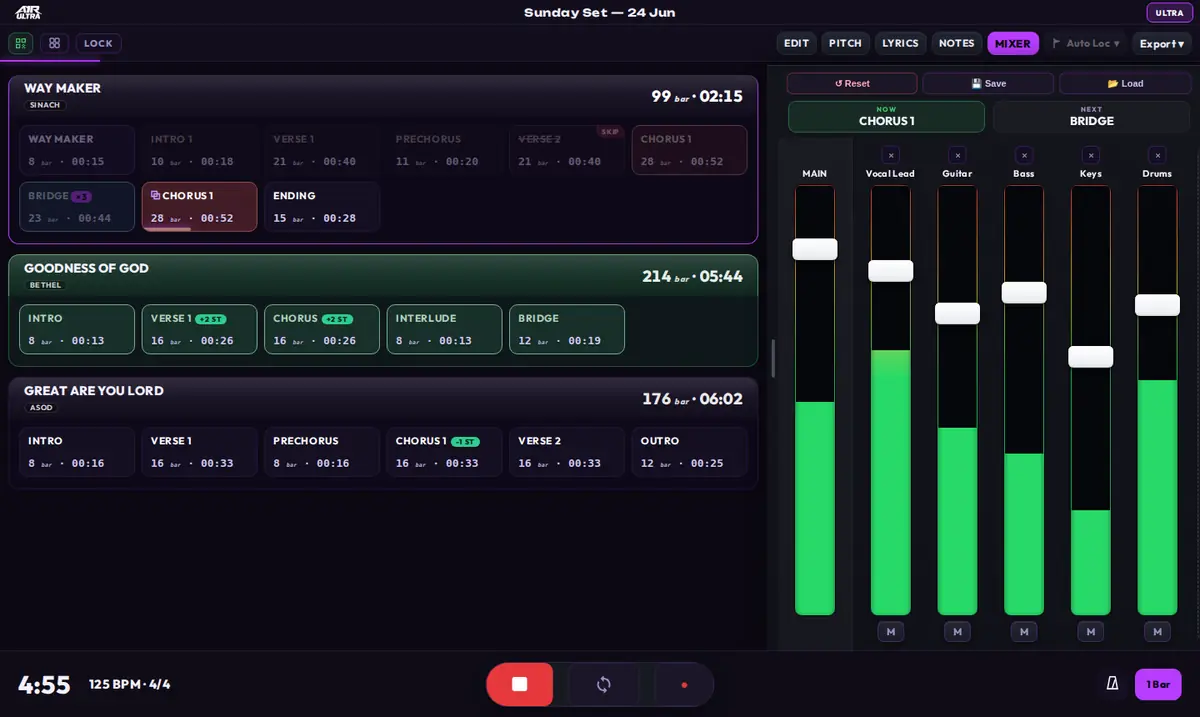
Once the Control Surface is set, open the browser and your setlist is already there.
Phones & tablets
Any device on the same Wi-Fi can run the full interface. Tap the pill in the top-left corner of the ULTRA window to see the server's IP address and a QR code — scan it with your phone's camera and you're in. http://a1r-ultra.local works too on devices that support mDNS.
Only one control-surface script should drive transport. ULTRA only needs the Control Surface slot — keep Input/Output on None.